9ton docs
Keep the memory.
Change the model.
Your agent’s memory and context live in a folder you control. Open that folder in a supported app or terminal. The prompts below guide you through connecting accounts, importing history, and testing recall in that tool. You don’t need a GitHub account.
This is an example guide. Your personal setup page creates prompts from your answers. Keep your private brain out of the template repository.
 ChatGPT / Codex
Meet your agent.
A few copy-and-paste messages. Your agent takes care of the setup.
1Start with ChatGPT / Codex
Open Codex or ChatGPT
Press ⌘ Space, type Codex or ChatGPT, then press Return.
Use a local project or conversation with file access. Sign in if asked.
Get the ChatGPT / Codex app ↗- In the desktop app’s local-folder picker, open your Mac Home folder. Start the local project or conversation there.
- Only after that folder is open, copy and paste the preparation prompt below. Your agent will create a named brain folder inside it.
Don’t have ChatGPT / Codex yet?
The app needs to be installed and signed in before it can receive a prompt. Official setup ↗
Before continuing, open your local user home folder in this tool and find the agent conversation there. Then mark this done.
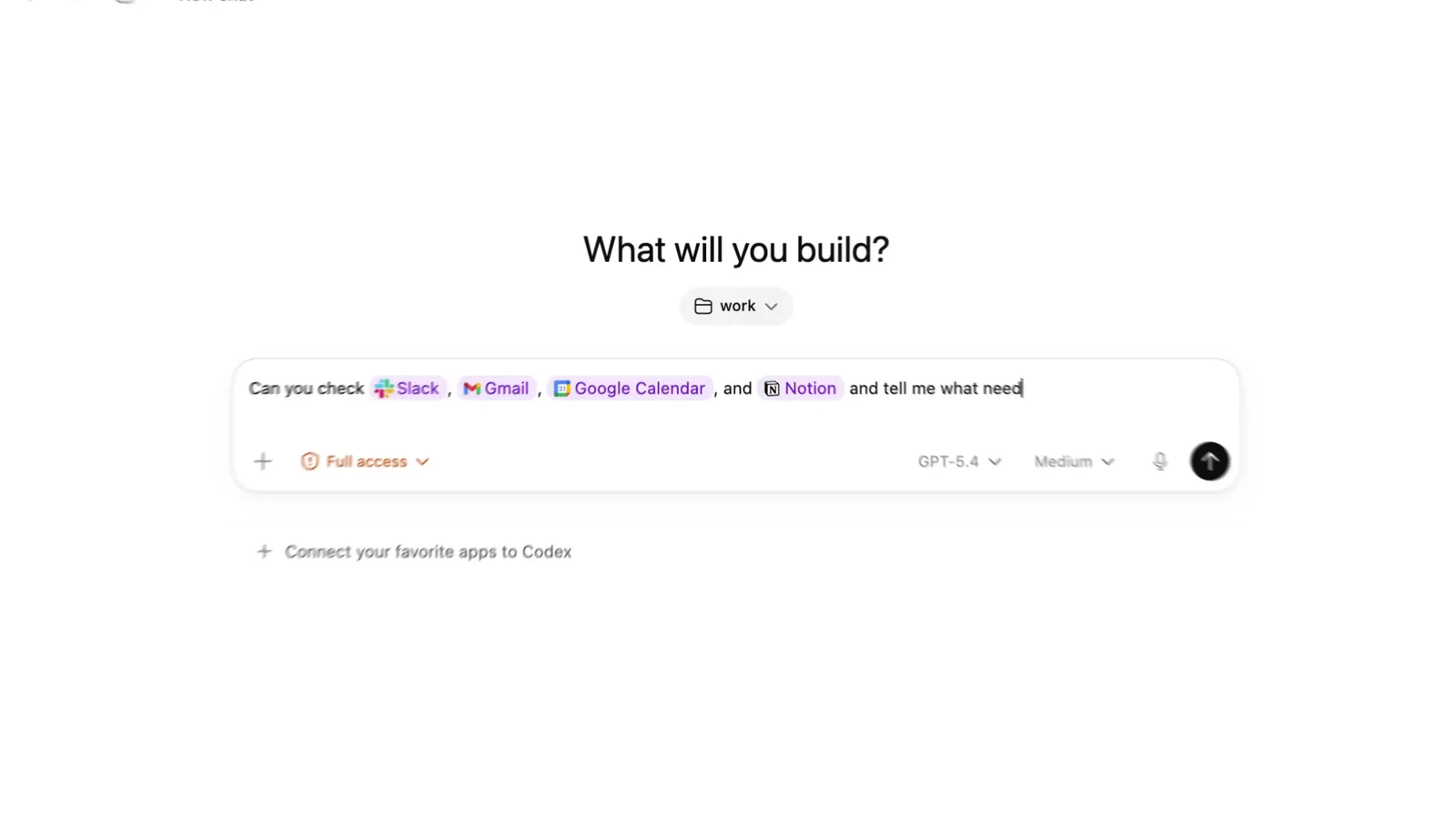
2Let your agent unpack their home
Your brain’s permanent home: ~/your-agent-brain. Your agent will show the full path before extracting. Choose another location if you prefer.
- Copy the preparation prompt below. Its default permanent home is ~/your-agent-brain.
- Paste it into ChatGPT / Codex and send it. Check the full path and folder name your agent shows before extraction.
- If file access is blocked, select the intended folder in your app’s local-folder picker. Wait for “Your brain folder is ready.”
Find my Foundry download, unpack it safely, and prepare the right working folder for my agent.
Paste into the ChatGPT / Codex conversation with ⌘ V, then send. Your agent handles the files and asks for access if needed.
Read the full prompt
Confirm the brain folder once.
During setup, check that your agent is working in the right brain folder. You only need to paste this check prompt once.
ChatGPT / CodexIllustration/Users/you/your-agent-brain-exampleLook for the full path, not just the folder’s name.START-HERE.md_foundry/seed.jsonAgent/ · Memory/ · Skills/“I’m your agent. My session is open in your-agent-brain-example, and I found your brain files. Is this the brain you intended?”
Show the full path of this session’s brain folder, check the files and saved identity, and ask me to confirm.
Paste this once during setup into the ChatGPT / Codex conversation you’ll use for your brain. Compare its result with A, B and C above, then confirm there.
Read the full prompt
Only mark the folder done after all three match. Wrong name, missing files, or a session still in your home folder? Ask your agent to help reopen the right folder first.
3Say hello to your agent
After your agent confirms “Your brain folder is ready,” copy this hello message into that conversation.
Read my brain files, introduce yourself as your agent, and confirm you can work in this folder.
In ChatGPT / Codex, click the message area, paste with ⌘ V, then press Enter or Send. Wait for the reply before continuing.
Read the full prompt
The preview summarizes the message. Copy includes the full instructions and your setup preferences.
Choose Next when you see the result above. There’s no rush—wait for your agent to finish.
Once you see the result above, click “I’ve done this — Next” to confirm and continue.
Wrong computer? Change setup
Something didn’t work?
Copy this into your agent conversation and add the error you saw.
Help me recover this Foundry setup in ChatGPT / Codex on Mac. Ask for the error or missing result, inspect the actual folder and permissions with your tools, and resolve what you can. Preserve existing files and working setup. Ask me only for a sign-in, permission, or UI action you cannot perform, one at a time. Explain the expected result and verify it before moving on. Never ask me to paste passwords or tokens.
Paste into your existing agent conversation with ⌘ V, then send.
Read the full prompt
Already have a vault or agent?
Copy this into your existing agent conversation. It will propose a merge before changing anything.
I already have a vault or agent. Inspect my existing folder read-only. Help locate my separate Foundry download and read its saved seed as preferences. Preserve the identity I choose. Inventory both folders and propose a small merge plan, identifying conflicts. Get my approval and create a verified backup before modifying any existing files or settings. Never unzip over my existing vault or replace working connections. Perform the file work yourself; ask me only for access you cannot obtain. Preserve originals, source links, and completed setup evidence. Resume the Foundry checks from actual results.
Paste into your existing agent conversation with ⌘ V, then send.
Read the full prompt
These pages guide you; they don’t verify activity in another app. 9ton docs ↗
Connect your accounts.
Set up Composio in your chosen AI app, then sign into the accounts you want to connect for services it supports. Ask your agent to read a small sample from each account to check that access works. Apple Messages and local MCP servers need separate setup.
| Device / app | Messages setup |
|---|---|
| Claude on Mac | For Claude (desktop), check for a suitable verified integration in this exact local app mode; our documented fallback is https://github.com/jonmmease/jons-mcp-imessage on Mac. Claude desktop extensions and Claude Code MCP configuration are distinct; never assume tools carry across modes. For Jon’s server, verify Python 3.10+ and uv; the agent performs installation using the verified project instructions, with guidance matching the chosen app or Terminal path. Keyword search does not require an OpenAI API key. Verify the server source, runtime, app-specific MCP registration, and Full Disk Access for the process reading Messages. Guide required permission clicks, restart if needed, then verify access. Do not assume a connector installed in another app is available here. |
| ChatGPT / Codex on Mac | Use Apple Messages in ChatGPT desktop on an Apple Silicon Mac: open Plugins, install Apple Messages, start a new Codex or ChatGPT Work chat, and grant the requested macOS permissions. Verify a scoped read. It is not available in regular ChatGPT chat, web/mobile, CLI, or on Intel Macs. If unavailable or disabled by an administrator, keep it pending or agree a verified local alternative. |
| OpenCode on Mac | For OpenCode (desktop), check for a suitable verified integration in this exact local app mode; our documented fallback is https://github.com/jonmmease/jons-mcp-imessage on Mac. Claude desktop extensions and Claude Code MCP configuration are distinct; never assume tools carry across modes. For Jon’s server, verify Python 3.10+ and uv; the agent performs installation using the verified project instructions, with guidance matching the chosen app or Terminal path. Keyword search does not require an OpenAI API key. Verify the server source, runtime, app-specific MCP registration, and Full Disk Access for the process reading Messages. Guide required permission clicks, restart if needed, then verify access. Do not assume a connector installed in another app is available here. |
| Cursor on Mac | For Cursor (desktop), check for a suitable verified integration in this exact local app mode; our documented fallback is https://github.com/jonmmease/jons-mcp-imessage on Mac. Claude desktop extensions and Claude Code MCP configuration are distinct; never assume tools carry across modes. For Jon’s server, verify Python 3.10+ and uv; the agent performs installation using the verified project instructions, with guidance matching the chosen app or Terminal path. Keyword search does not require an OpenAI API key. Verify the server source, runtime, app-specific MCP registration, and Full Disk Access for the process reading Messages. Guide required permission clicks, restart if needed, then verify access. Do not assume a connector installed in another app is available here. |
| Antigravity on Mac | For Antigravity (desktop), check for a suitable verified integration in this exact local app mode; our documented fallback is https://github.com/jonmmease/jons-mcp-imessage on Mac. Claude desktop extensions and Claude Code MCP configuration are distinct; never assume tools carry across modes. For Jon’s server, verify Python 3.10+ and uv; the agent performs installation using the verified project instructions, with guidance matching the chosen app or Terminal path. Keyword search does not require an OpenAI API key. Verify the server source, runtime, app-specific MCP registration, and Full Disk Access for the process reading Messages. Guide required permission clicks, restart if needed, then verify access. Do not assume a connector installed in another app is available here. |
| Windows / Linux | Live iMessage requires a Mac with the relevant conversations synced in Messages. On this device, keep iMessage pending or explicitly choose a supported source/export instead. An export does not establish live SMS access. |
WhatsApp exports supply history, not live access. Canvas needs a supported institution-approved connection. Keep unavailable selected services pending until you explicitly change the selection.
Fix a connection.
Your agent shows each account’s address, permissions, latest check, and any steps needed to restore access. It saves connection health in your local brain; this website cannot inspect your accounts. We still need to test multiple inboxes with consumer Composio connections during the pilot.
Wrong account. Stop the action. Choose the intended email address and verify it with a small read.
Authorization expired. Reconnect just this account, then recheck its identity and permissions.
Permission blocked. Show the missing permission and the supported administrator or alternative path.
Tools missing after restart. Check the connection in this app before reconnecting or creating a duplicate.
Windows Codex says OAuth state not found. Sign in to ChatGPT web in the same browser profile and account/workspace. Connect Composio from Plugins there if offered, then return to a fresh Codex task in the same brain folder and verify a small read. If unavailable, retry desktop once after web sign-in; keep setup pending if it still fails.
Multiple inboxes are ambiguous. Keep setup pending until the app can select the exact account reliably.
A send or create timed out. Check for the result before retrying. An unclear outcome needs review.
Check what your agent can do.
Ask your agent to find something useful in your history, such as a forgotten follow-up or a connection between projects. Check its sources. The graph helps you explore your notes, but cannot prove that your agent remembers them correctly.
Before marking setup complete, check every selected account and verify at least one ongoing connection. Finish the agreed history import, test automatic capture and recall in a fresh conversation, and inspect a completed scheduled run and its next run time. Wait for those results before marking the steps done.
If a source reaches an import limit, have your agent ask permission to continue or agree with you on a smaller scope. The reported history must match what it actually imported.
Pick up where you left off.
Return to the same brain folder so your agent can resume from its saved checkpoint. Do not extract a new download over existing work. After your first useful result, tell your agent about any important people it missed and how you want to organize your vault.
Local files remain on your device, but your chosen AI and connector providers process the content you share. Schedules may use model credits and require your computer to be awake. Connecting an inbox does not authorize sending messages or changing read status.
Pilot status
Foundry uses consumer Composio connections: the official agent plugin for Claude Code and Codex where supported, and Connect for OpenCode, Cursor, and Antigravity. Antigravity is an assisted preview; we have not verified its automatic capture adapter. Before a broad rollout, newcomers still need to test selecting the right inbox, making changes to connected services, keeping connections after a restart, and recovering from failures. Following this guide does not replace those checks.
Architecture, ownership & rollout checklist ↗Sources & documentation
The web guide and downloadable Markdown use the same walkthrough. If an app’s labels differ, follow its current official instructions. We last checked the app and terminal setup documentation on September 28, 2026. The source repository currently requires access.
- Claude desktop ↗
- ChatGPT / Codex and Apple Messages ↗
- OpenCode desktop ↗
- Cursor Agent ↗
- Antigravity app and Terminal ↗
- Composio agent plugins ↗
- claude Terminal setup ↗
- codex Terminal setup ↗
- opencode Terminal setup ↗
- cursor Terminal setup ↗
- antigravity Terminal setup ↗
- Composio Connect ↗
- Composio account boundaries ↗
- Multiple accounts (developer sessions) ↗
- Jon’s iMessage server ↗
- Obsidian vaults ↗
- Obsidian graph ↗